Surfaces
After selecting Surface, a square will appear in the centre of the image.
Move your mouse around to position the surface and click to set where you want the surface to be.
To adjust surface points, drag the nodes as needed.
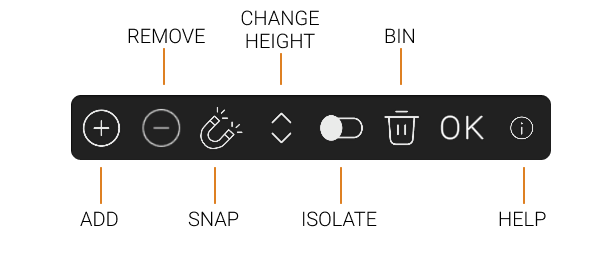
Surface Menu
Add
To create more complex shapes, click the add button and then click to start placing more nodes.
The added node will appear between the two closest existing nodes!
Remove
Click to remove the last touched node.
Snap
The snap feature will connect a node to the nearest existing point
When selecting the snap button, you can connect to other objects, like kerbs, road markings and other surfaces!
Change Height
The surface is brought in at road level, and you can use this button to raise it to footway level and lower it back down to road level.
Isolate
Turns off all other objects.
Bin
Deletes the entire surface.
OK
Choose OK to close the menu and stop editing the current surface.
RIGHT CLICK on any existing surface to edit it again!